Rex has loaded the guide for you...
Thank you. Your chosen browser is Google Chrome
"That is everything I need to know from you. I have loaded a step-by-step guide below for you to add the Butlins Memorabilia website to your favourites"
Thank you. Your chosen browser is Google Chrome
"That is everything I need to know from you. I have loaded a step-by-step guide below for you to add the Butlins Memorabilia website to your favourites"
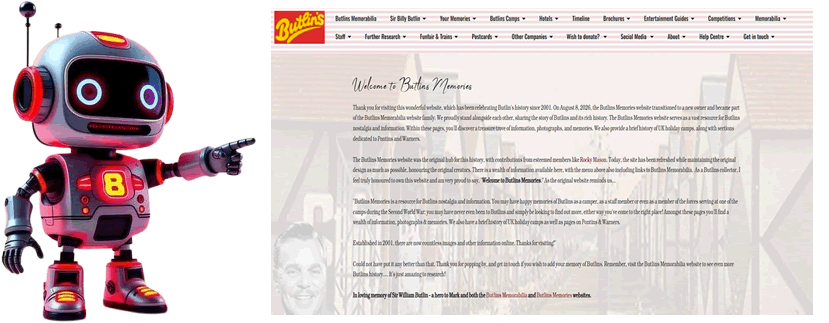
First, you must find the page you intend to bookmark on the Butlins Memories website. For example, if you would like to see a specific page, load it using the website's menu. If you want to save the whole site, meaning that the home page is always the location you wish to see, use the link below.
https://www.butlins-memories.com/
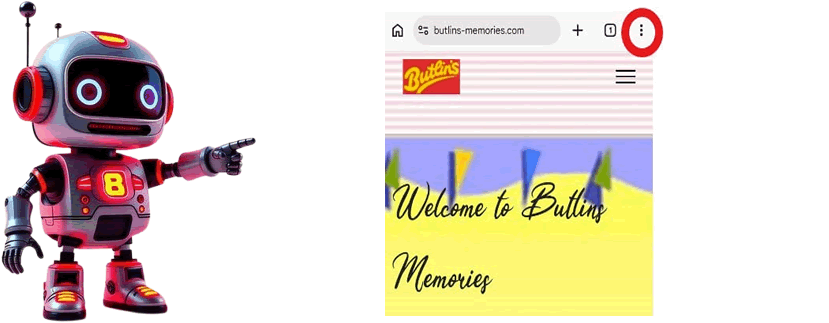
At the top of the screen, look for the three dots, which I have circled in red for you in this screenshot.
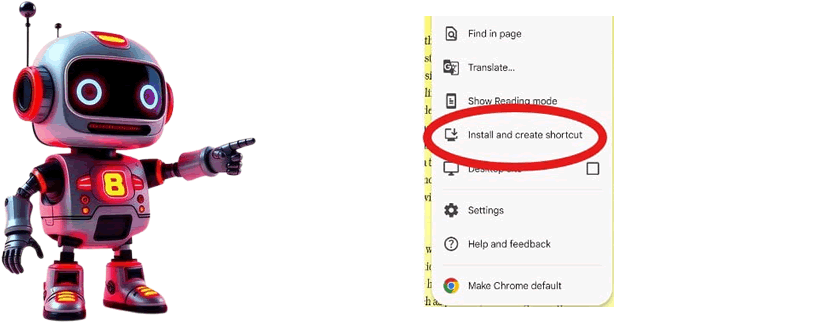
Now scroll down the menu until you find "Install and create shortcut"; please click on this.
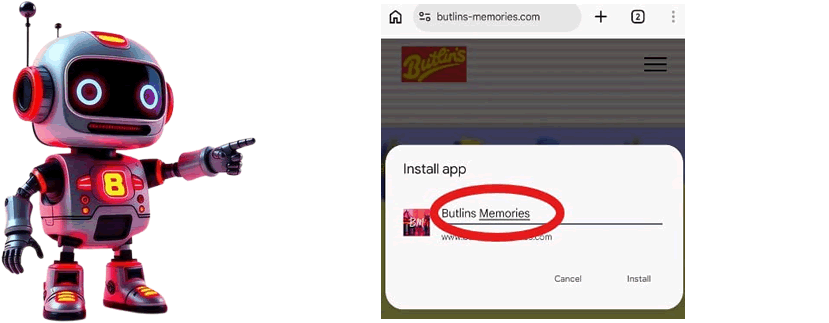
A notification will show up on your device, requesting your confirmation to create a shortcut. Please rename this to "Butlins Memories"; otherwise, the name will be too long for the shortcut.
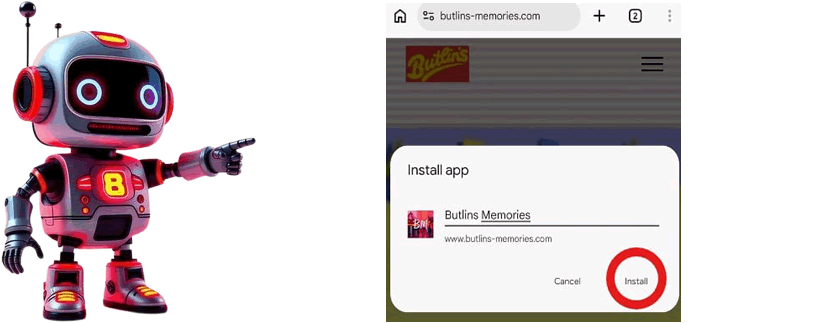
Your device will now ask you if you wish to create a new shortcut. Please click on the "Install" option.