Butlins Memories tells us...
"That is all I require from you, as there will be no more questions. Below are two available options: the first is a guide on how to add the Butlins Memories website to your favourites in your browser.
Option One
The first option is adding the website as a favourite in your browser.
Here is a detailed guide on how to add the Butlins Memories website as an icon on your device. Make sure to take some brief notes from this to assist you.
Step 1
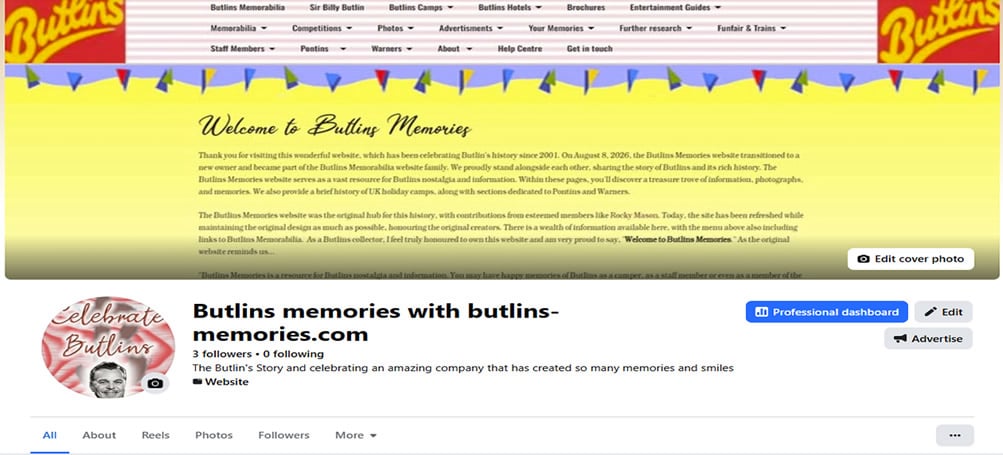
First, you should find the page you want to bookmark on the Butlins Memories website. For example, if the Minehead section is your preferred choice, click on the menu for that section to save it. If you like the entire website, click on the home page located here: https://www.butlins-memories.com/
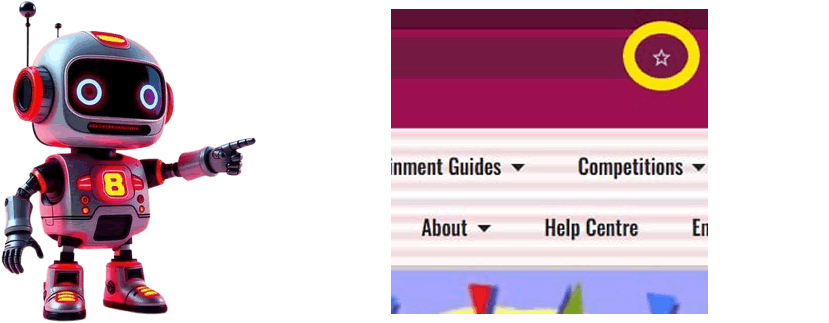
Both Google Chrome and Microsoft Edge have an easy way to add a website to your favourites. All you need to do is click on this star, found on the address bar at the top at the end.
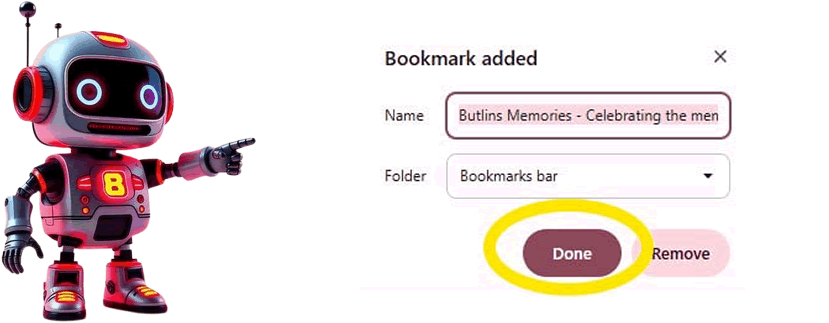
Click on "Done", and the Butlins Memories website is now a part of your favourite websites, giving you a quick link directly to the website.
All done!
Well done for adding the Butlins Memories website to your PC/Laptop device, and thank you for being a visitor to the website. It's great to see that you enjoy the website.
Butlins Memories tells us...
The second option explains how to create a shortcut on your main desktop (where all the icons are). Please take a moment to determine which option is most suitable for you, and thank you for adding the Butlins Memories website to your favourite websites
Here is a detailed guide on how to add the Butlins Memories website as an icon on your device. Make sure to take some brief notes from this to assist you.
Step 1
First, you should find the page you want to bookmark on the Butlins Memories website. For example, if the Minehead section is your preferred choice, click on the menu for that section to save it. If you like the entire website, click on the home page located here:
https://www.butlins-memories.com/
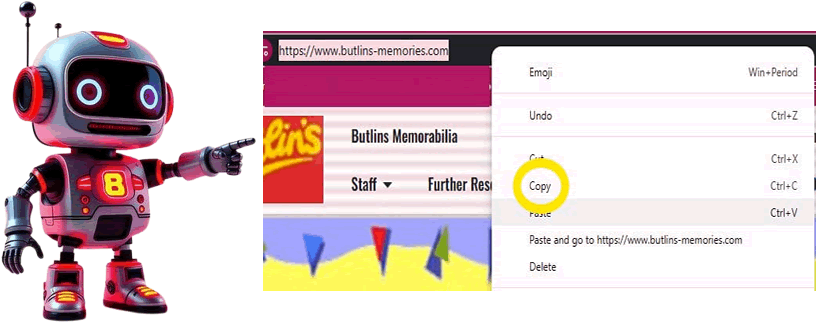
Move your mouse up to the address bar on your browser and highlight the address shown in the address bar, for example: https://www.butlins-memories.com/. Once you have it highlighted, right-click on it and select the option "Copy".
Additional method: You can also hold down the "CTRL" button and press "C" on your keyboard; it will also copy the link.
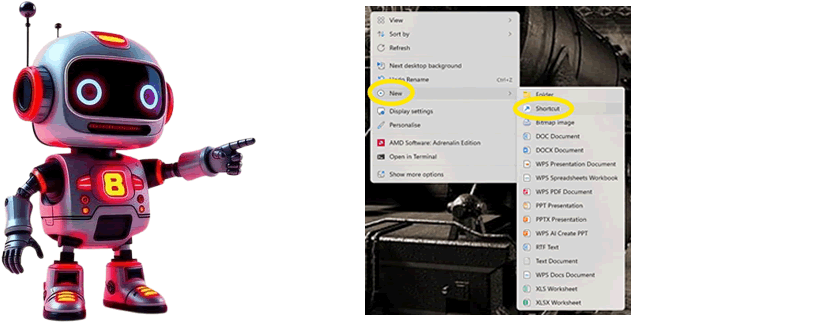
Now go to your desktop (where all your icons are) by either closing the browser down or minimising it. Find a space that is free on the desktop and right-click with your mouse. A menu will appear. Please choose the option
"New" and then choose "Shortcut"
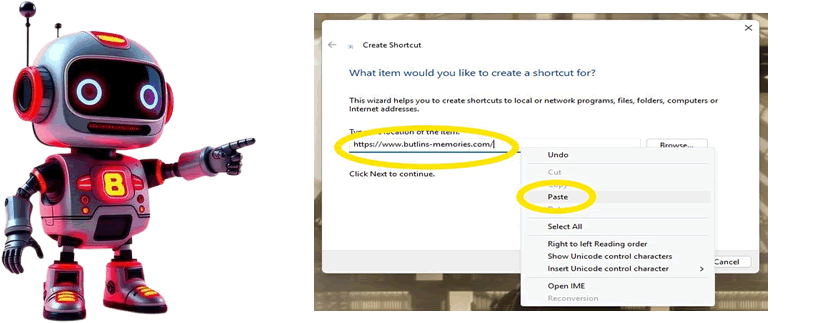
You will now see a new box appear called "Create shortcut". Move your mouse over to the white box and right-click once. When the menu appears, click on the option called "Paste".
Now click on "Next"
Additional method: You can also hold down the "CTRL" button and press "V" on your keyboard; it will also copy the link.
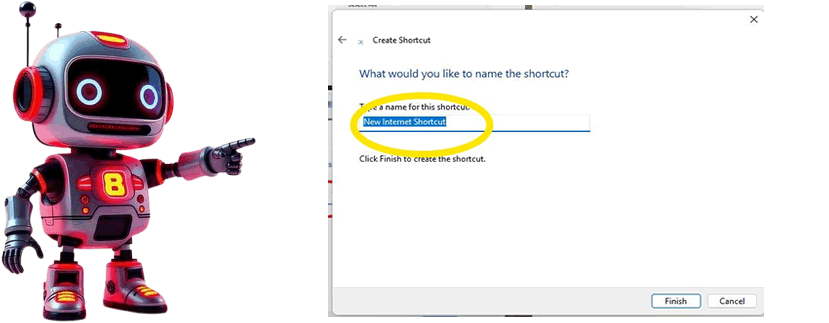
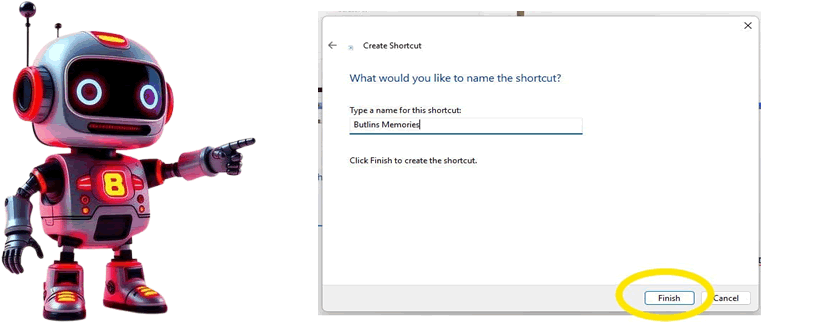
Now rename the shortcut to "Butlins Memories
Now click on finish to complete the shortcut.
All done!
"Well done for adding the Butlins Memories website to your icon list on the desktop. Each time you click on this icon that you made, it will automatically take you to the Butlins Memories website. Thank you for adding this website to your list of favourites - Mark"